Layout switcher · Voice input · AI assistant · Meeting recorder — for Windows
Typed ghbdtn instead of привет? NeuroSwitcher fixes it.
NeuroSwitcher is a free, local keyboard tool for Windows 10 and 11 — a modern Punto Switcher alternative. It fixes wrong-layout typing in English, Russian, Hebrew, and experimental German as you type, takes dictation into any app with offline voice input, and puts an AI assistant on a hotkey in every text field — while your keystrokes stay on your PC.
Current beta builds are unsigned, so Windows may show a SmartScreen warning. SHA-256 verification and install details are below. Read install notes.
Installer asking for WebView2? NeuroSwitcher uses the Microsoft Edge WebView2 runtime for its AI chat and break screen. The setup normally installs it for you, but it cannot when the PC is offline — and on Windows 10 it is not always present to begin with (Windows 11 ships with it). Fix: install Microsoft Edge WebView2 runtime (x64, direct from Microsoft), then run the NeuroSwitcher setup again.
- Local-first
- Windows 10 / 11
- Open core
- No typing upload
ghbdtn, vbh!
привет, мир!
Detected: EN keys -> RU text
Status: Running
Mode: Both
Hotkey: Pause
Everything NeuroSwitcher does
Free online layout converter
Typed in the wrong layout? Fix the text online — no install.
Paste text accidentally typed in the wrong keyboard layout — like ghbdtn instead of привет — and convert it instantly in your browser. Everything runs locally; nothing is uploaded. For automatic, system-wide correction as you type, install NeuroSwitcher.
Open the full-page layout converter → · Transliteration tool →
Why a dedicated layout switcher
The free Windows shortcut switches the layout. NeuroSwitcher fixes what you already typed.
An automatic keyboard layout switcher for daily English, Russian, Hebrew, and German typing — local on your PC, with a dictionary, suggestions, and per-app exclusions.
Quick start
Install it, check the tray, and try one correction.
The beta is meant to be tested in your normal apps. Start simple, then open Pro Console when you want to tune behavior.
Install the beta
Run the Windows installer. NeuroSwitcher starts as a tray app and keeps the local runtime visible from the tray menu.
Type as usual
Try a short wrong-layout phrase in a chat, browser field, Notepad++, or another everyday text box.
Use Pause or Auto mode
Press Pause for manual correction, or leave automatic mode running and watch the recent text get fixed in place.
Compatibility
Works best in ordinary text fields. Some apps need a little tuning.
NeuroSwitcher sends local keyboard corrections through Windows text input. Most plain text fields behave cleanly; a few apps add their own smart typing layer on top.
Good places to test first
Notepad++, chats, browser inputs, search fields, support tools, code comments, and plain document fields are good baseline tests for the correction pipeline.
If one app distorts text
Turn off that app's autocorrect, spelling, completion, rich text, or Markdown options. If you prefer to keep them on, add the app to NeuroSwitcher exclusions.
Real beta UI
See the desktop workflow, not just a promise.
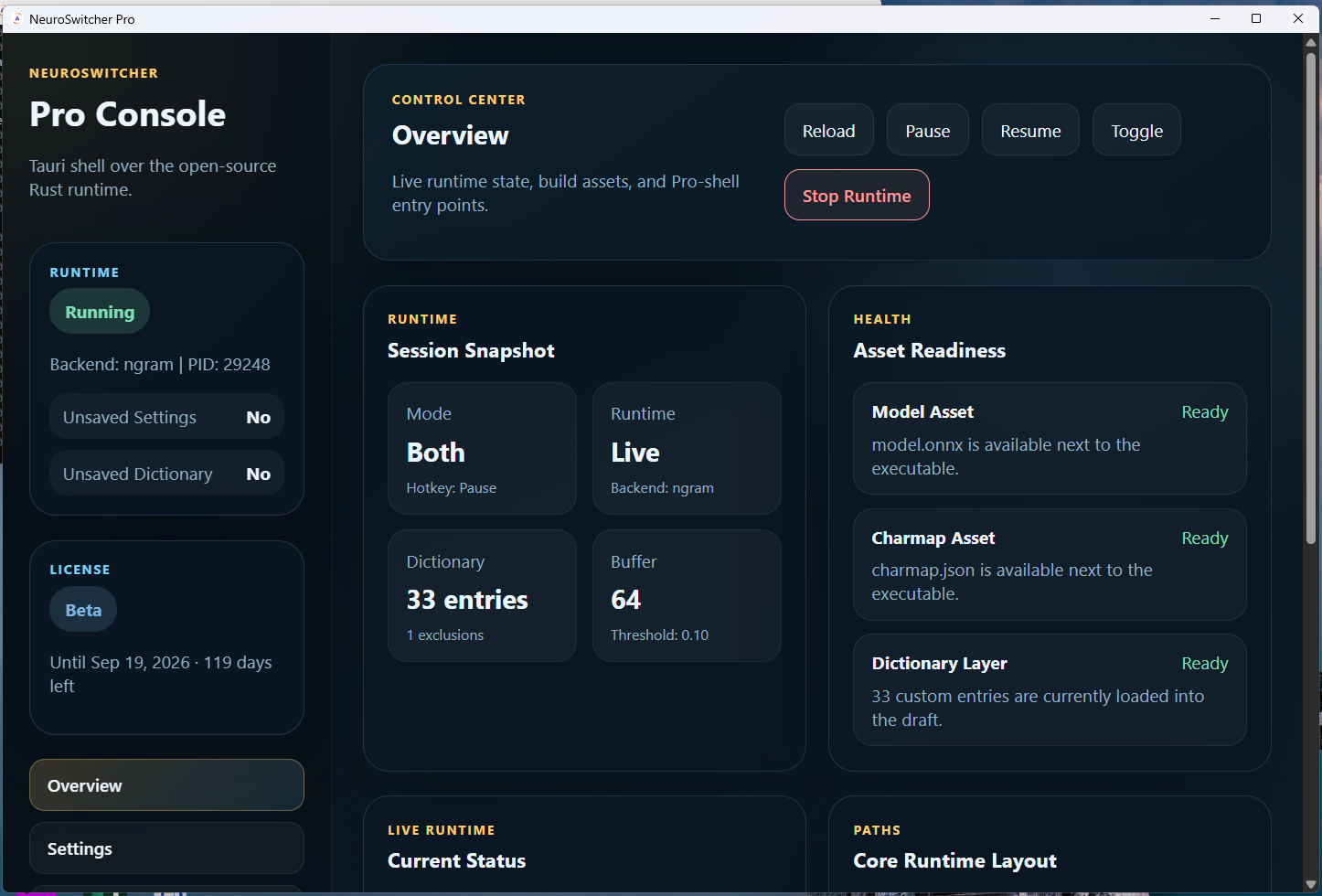
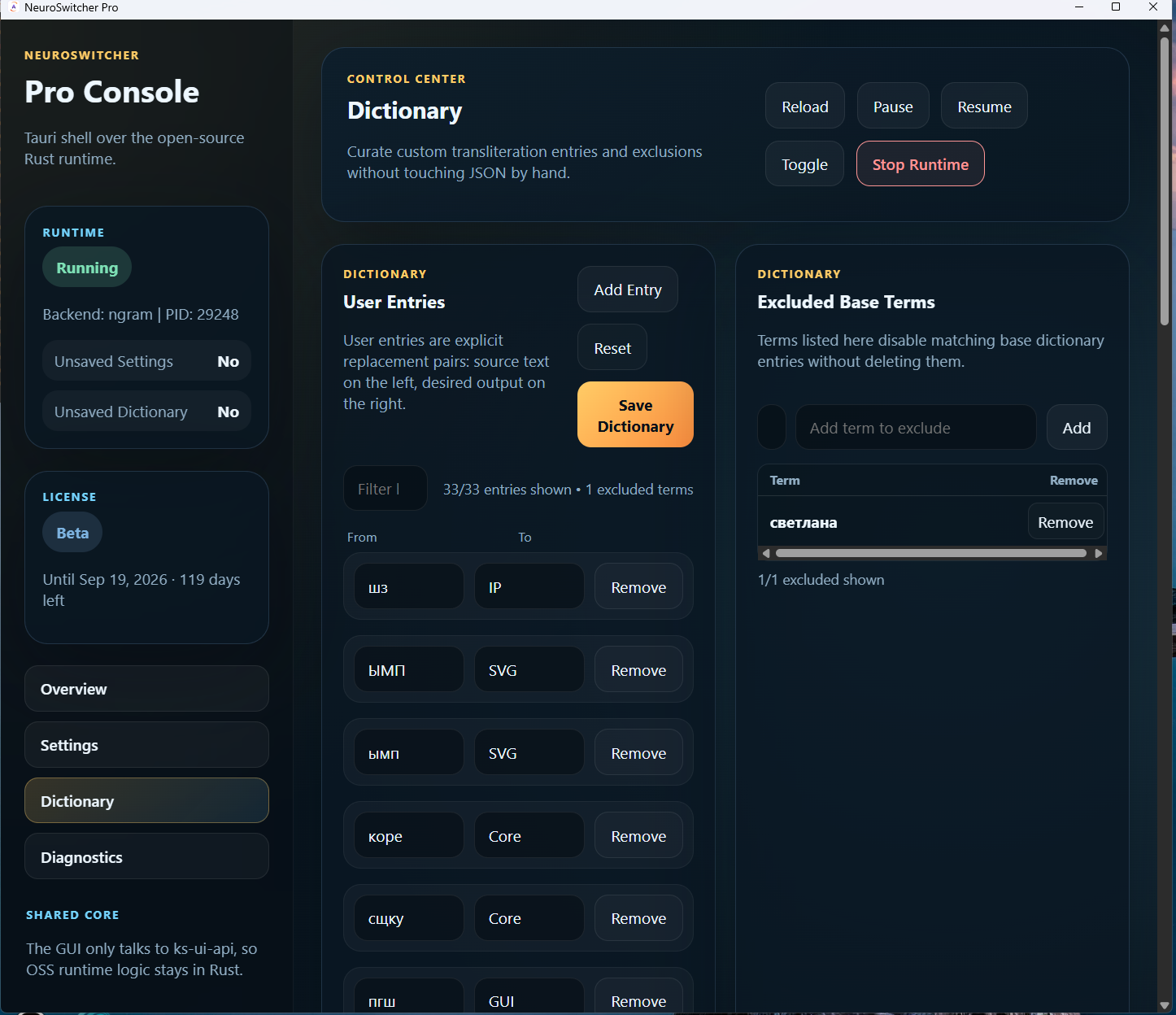
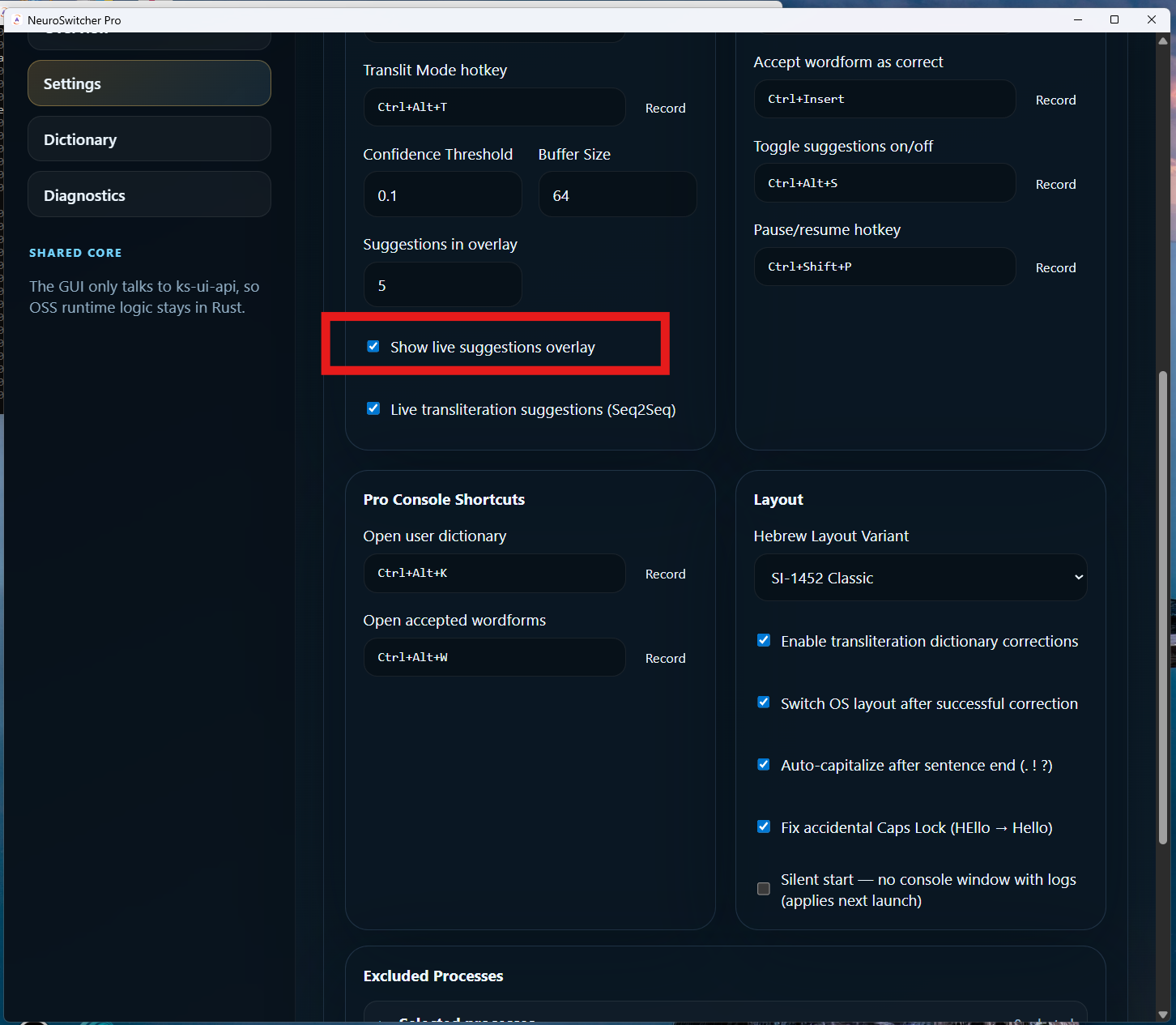
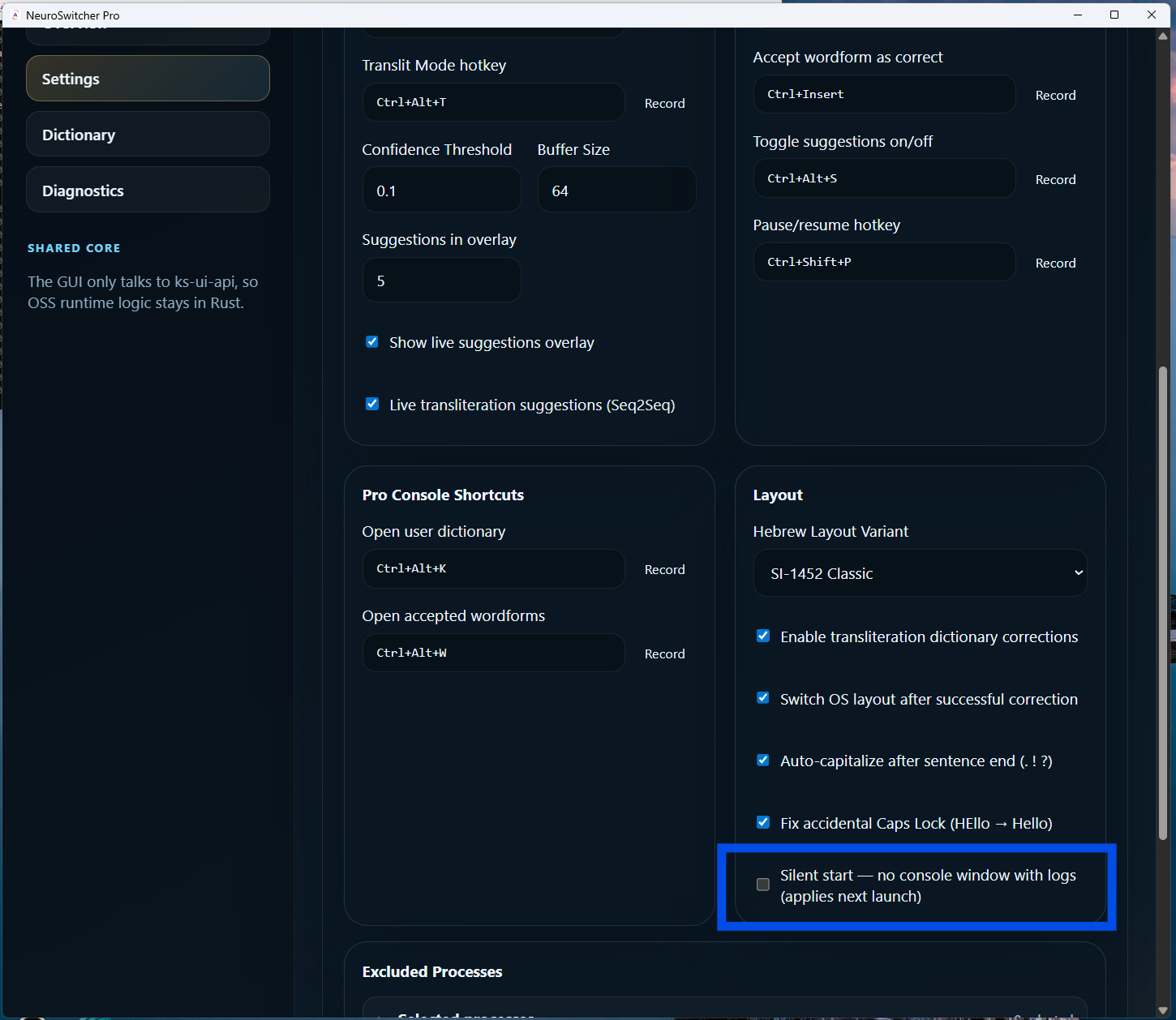
Pro Console is the control room for the Windows beta: runtime status, hotkeys, dictionaries, app exclusions, suggestions, diagnostics, and logs stay visible without digging through config files.
Mode Auto
Beta screens
Current functionality
A practical keyboard assistant for multilingual work.
NeuroSwitcher is built for people who move between languages all day: messages, documents, code comments, search, support chats, and internal tools.
Automatic wrong-layout correction
Analyzes the recent typing buffer, detects when the characters do not fit the active language, switches the layout, and replaces the text. For manual control, press Pause to convert the last word or selected text. Undo the last correction with Shift+Pause.
Pause and resume
Temporarily stop or restart the runtime with Ctrl+Shift+P. The same control is available from the tray menu when you prefer not to use a hotkey.
English, Russian, Hebrew
Stable core mappings cover English, Russian, and Hebrew in both directions. German support is present as an experimental path.
Hebrew done properly
Supports SI-1452 Classic, SI-1452-2 Arkan, and Phonetic QWERTY-Hebrew variants, with BiDi fixes for brackets and direction markers.
Transliteration mode
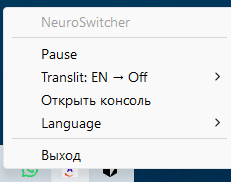
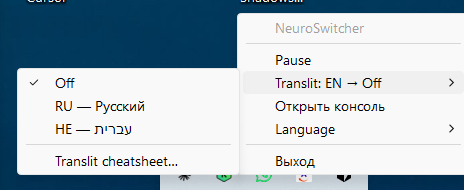
Type Latin input and convert it into Russian or Hebrew. Toggle Translit Mode with Ctrl+Alt+T or from the tray menu; the tray also opens the transliteration rules cheatsheet file.
Smart dictionary
Includes 430+ built-in transliteration entries and lets users add custom replacement pairs without changing the core engine. The user dictionary is edited in Pro Console: it stores from → to rules, not accepted wordforms.
Live suggestions
Shows local in-typing suggestions. Accept with Right, toggle suggestions with Ctrl+Alt+S, and move through candidates with Up / Down.
Enter finishes the word
The last word before Enter is corrected like any other, so the sign-off at the end of a message no longer goes out in the wrong layout. Treat Enter as the commit: in a chat the message leaves already corrected, in some editors the line break takes a second Enter. With the suggestion list open, Right accepts the highlighted variant and Enter then sends; Left or Esc closes the list and leaves the word exactly as you typed it. Switch it off in Pro Console if you would rather Enter stayed untouched.
Typing polish
Can auto-capitalize after sentence endings and fix accidental double-uppercase words such as HEllo to Hello. Use Ctrl+Insert to accept the current wordform: NeuroSwitcher remembers that the word is already correct, but does not create a dictionary replacement.
App exclusions
Disable corrections for selected processes: games, video players, terminals, IDEs, or any app where keyboard interception should stay out of the way.
Flexible configuration
Pro Console exposes the confidence threshold, buffer size, suggestions, hotkeys, and Translit Mode languages. Quick shortcuts open the right section directly: Ctrl+Alt+H for clipboard, Ctrl+Alt+K for dictionary, and Ctrl+Alt+W for wordforms. It also has a silent-start switch: no log console window on the next launch.
System tray menu
Use the tray icon to pause or resume NeuroSwitcher, switch Translit Mode targets, open the cheatsheet, open Pro Console, change UI language, or quit.
Voice input new
Dictate into any app with a hotkey. Speech recognition runs locally by default — offline, no subscription, audio never leaves your PC; or add zero-setup NeuroSwitcher Cloud or your own provider key. Russian, English, German, and beta Hebrew. Local models run on the processor — or several times faster on an NVIDIA card that supports CUDA. More about voice input →
AI text assistant new
Select text anywhere, press Ctrl+Shift+G to rewrite it in place or Ctrl+Shift+E to ask about it — now with screenshots and images attached too. Works with free NeuroSwitcher Cloud, your own API key, or local LLMs (Ollama, LM Studio). More about the AI assistant →
 NeuroPomodoro · new
And it also tells you when to stand up and look out of the window.
NeuroSwitcher has a plain break timer built in: 25 minutes of work, 5 minutes of rest, a long break every fourth cycle. When the break comes, a small window in the corner shows what to do with those five minutes — for your eyes, your breathing and your back. Free, no account, no cloud: the timer runs on the clock, never reads what you type and never contacts the network.
Stays out of the way
A small corner window by default that does not take focus. While a game, a call or a presentation is in front it does not appear at all. There are quiet hours, “+5 min” and “off for today”.
Twelve short routines
Eyes, breathing, wrists and neck, get-up-and-walk — illustrated and counted step by step. Untick what you do not want; keep one and see only that.
Your photos on the break
Point at a folder and your own pictures fill the pause. They are read from disk when the break starts: never copied, never indexed, never uploaded.
Default keyboard shortcuts
Start using NeuroSwitcher without opening settings.
These are the current default shortcuts in the beta. Pro Console lets you change them later if they conflict with your workflow.
Reviews
What users say
Real beta feedback
Beta feedback
Found a missed correction, false positive, or installer issue?
Send it to support@neuroswitcher.app. Real examples from everyday apps are the fastest way to make the beta better.
What to include
- NeuroSwitcher version and Windows version.
- The app where it happened: browser, Telegram, Word, IDE, terminal, game, or another app.
- Active languages and layouts: English, Russian, Hebrew variant, German, Translit Mode, suggestions on/off.
- What you typed, what you expected, and what NeuroSwitcher actually did.
- Whether it was automatic correction, Pause, live suggestion, clipboard paste, dictionary, or installer behavior.
Logs help a lot
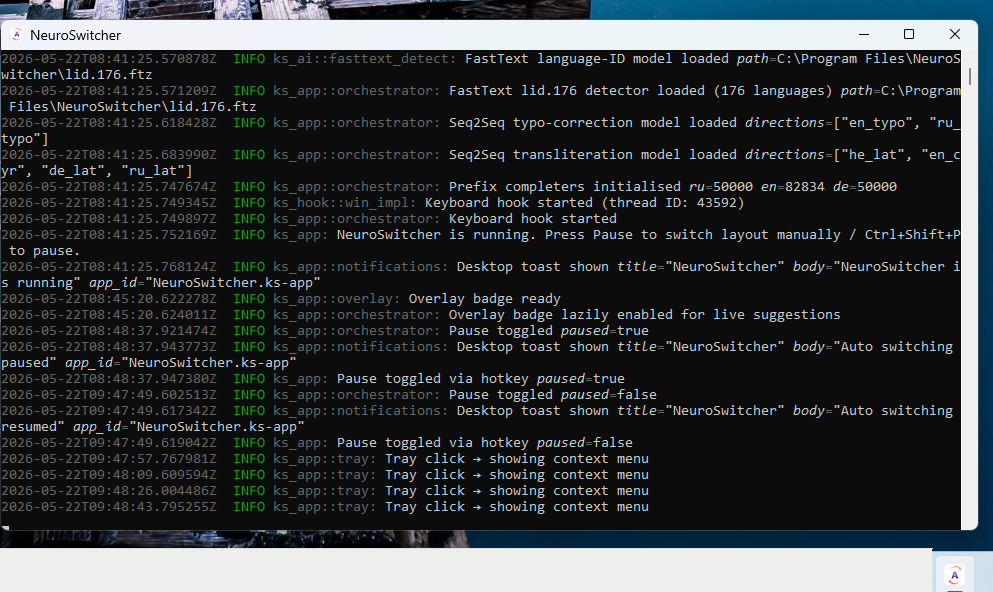
Open Pro Console, go to Settings, and turn off Silent start — no console window with logs for the next launch. Restart NeuroSwitcher, reproduce the issue, then copy the relevant lines from the log console into the email. Please remove passwords, tokens, private text, or anything sensitive before sending.
Email support
Pro beta
The beta focuses on control, diagnostics, and a finished desktop workflow.
Pro is not just a prettier tray icon. It is the control layer around the local Rust runtime: visual settings, dictionary editing, runtime health, clipboard workflow, and packaging for non-technical users.
Pro ConsoleTauri desktop UI over the shared Rust core, available from the system tray menu.
Settings editorHotkeys, modes, confidence, Hebrew layout, suggestions, and startup behavior.
Dictionary editorAdd custom entries, exclude built-in rules per word (e.g. keep a name like "Хелло" from being rewritten), all without hand-editing JSON.
Clipboard historyLast 30 entries, pinned items, secret masking, and wrong-layout paste hints.
Runtime diagnosticsConfig paths, model assets, charmap readiness, status, pause/resume, and logs.
Beta trackPublic beta now, free until 1 December 2026; feedback from everyday use shapes the next builds.
Privacy and trust
Your typing stays on your machine.
For the full trust document, see Privacy & Security.
No cloud dependency
Detection, correction, transliteration, dictionaries, and Pro console state are designed to work locally.
No typing telemetry
The beta API never receives typed text. It only records download events, install pings, version, OS, locale, channel, country, and weekly heartbeats so beta quality can be measured.
No clipboard pollution
The core substitution path uses Windows text input APIs instead of relying on the clipboard for normal corrections.
Open core architecture
The shared runtime, mappings, config, hooks, and UI-safe API are separated from the commercial Pro shell.
Language coverage
Built around real multilingual typing.
EnglishQWERTY base mapping, detection, conversion, spell polish.
RussianWrong-layout correction, transliteration dictionary, Translit Mode.
HebrewClassic, Arkan, Phonetic layouts, BiDi fixes, Translit Mode.
GermanExperimental conversion and umlaut-oriented transliteration path.
FAQ
Questions beta testers usually ask.
Is NeuroSwitcher Pro Beta free?
Yes, the beta is free to download and test — free until 1 December 2026. Beta access is for real-world testing and feedback while the product is being polished. The date is built into the app, so install the latest build to get the extended beta.
Windows blocks the file or saves it as .ex_ — what now?
The beta is not yet code-signed, so two things can happen on download:
Windows SmartScreen warning — when you run the file, you see "Windows protected your PC". Click More info, then Run anyway. This warning goes away once the build is signed for the public release.
Antivirus rename to .ex_ — some products (Kaspersky, Bitdefender, corporate AV) quarantine unknown executables by changing the extension so they cannot be launched accidentally. Open your Downloads folder, rename NeuroSwitcher-X.Y.Z-Setup.ex_ back to .exe, and it will run. If your AV outright deleted the file, restore it from the AV quarantine and add a local exception.
You can verify the file you downloaded is the original: every release publishes its SHA-256 at /v1/latest. Compare it with certutil -hashfile NeuroSwitcher-X.Y.Z-Setup.exe SHA256 in PowerShell.
Does it require the internet while typing?
No. The beta is local-first: typing, detection, and correction run on your computer without constant internet access.
Can I turn it off in specific apps?
Yes. NeuroSwitcher supports a process exclusion list and Pro includes a friendlier visual editor for it.
What if one app conflicts with NeuroSwitcher corrections?
Some Windows apps add their own spelling, autocorrect, completion, rich text, or Markdown layer on top of text input. If one app turns corrected text into repeated or glued characters while Notepad++, chats, and browsers work cleanly, NeuroSwitcher is likely sending the correction correctly and that app is reinterpreting the fast Backspace + Unicode input.
Use either fix: turn off the app's smart typing features, or add that app to NeuroSwitcher exclusions. For Windows 11 Notepad, try Settings > Spelling > Autocorrect, then Spelling, and Formatting > Markdown if it is enabled.
What should beta testers report?
Email support@neuroswitcher.app with false positives, missed corrections, keyboard-layout edge cases, app-specific conflicts, installer issues, and confusing Pro Console settings.
The most useful report includes version, Windows version, app name, active languages/layouts, what you typed, what you expected, what happened, and copied Pro Console log lines if available.
How do I stop the built-in dictionary from rewriting a specific word?
Open the Dictionary tab in Pro Console (fastest way: Ctrl+Alt+K) and add the word to Excluded Base Terms. The built-in transliteration rule is muted just for that entry — everything else keeps working, and you don't lose the rule on the next update.
Common cases: a friend's nickname that looks like a translit target ("Хелло" stays as a name instead of being rewritten to "hi"); a term used in your professional jargon where the automatic conversion is wrong; a word you simply prefer to type as-is. One entry per line, save the dictionary, and the rule is gone for you.
Does NeuroSwitcher support voice typing or AI features?
Yes, both arrived in the current Pro beta. Voice input lets you dictate into any app with a hotkey — speech recognition runs locally by default — offline, or via optional NeuroSwitcher Cloud / your own key — in Russian, English, German, and beta Hebrew. The AI text assistant rewrites, translates, summarizes, or answers on selected text via hotkey, using free NeuroSwitcher Cloud, your own OpenAI / OpenRouter key, or local LLMs (Ollama, LM Studio). With a local model nothing leaves your machine; the cloud options are opt-in.
How is NeuroSwitcher different from Punto Switcher, Caramba Switcher, or EveryLang?
NeuroSwitcher is a modern Rust-based automatic keyboard layout switcher for Windows built around three things many existing tools lack:
- Proper Hebrew support — SI-1452 Classic, SI-1452-2 Arkan, and Phonetic QWERTY-Hebrew, with BiDi fixes for brackets and direction markers. Most Punto Switcher-style tools were designed for Russian/English only.
- Local-first by design — typing, detection, dictionaries, and clipboard history all run on your PC. No cloud account, no typing telemetry.
- Active development with an open core — the shared Rust runtime and mappings are open, and the Pro shell is a Tauri desktop UI rather than a legacy tray-only app.
Compared to Caramba Switcher and EveryLang, NeuroSwitcher adds live in-typing suggestions, a clipboard history with wrong-layout paste, an editable user dictionary with 430+ built-in transliteration rules, and a Pro Console that exposes confidence threshold, per-app exclusions, and hotkeys without editing JSON. The Pro beta is free during the beta period.
Free beta download
Try NeuroSwitcher Pro before the public release.
Download the current unsigned beta build, test it in your everyday apps, and send feedback about missed corrections, false positives, or shortcut conflicts to support@neuroswitcher.app.
Download Pro beta
Windows SmartScreen may show a warning while the beta is unsigned.
Verify the SHA-256 from /v1/latest
if you want to confirm the file before running it. Details.