☁ Fast
Speech recognition and answers in the NeuroSwitcher cloud. Works on any computer with internet, nothing to download.
Leaves the PC: the recording of what you said and its text — only when you dictate or call Neuron.
 NeuroSwitcher
New in 0.8.2 · Where the AI works
Dictation, the AI assistant, rules for sending and the Neuron voice assistant follow one switch. NeuroSwitcher looks at your graphics card and memory and suggests the mode that fits. Click — it works. No need to know what models, keys or servers are.
Three modes
A mode is not ten fields in a settings page but one decision: where the AI thinks. Change it any time.
Speech recognition and answers in the NeuroSwitcher cloud. Works on any computer with internet, nothing to download.
Leaves the PC: the recording of what you said and its text — only when you dictate or call Neuron.
Speech is recognised right on your computer, on the graphics card. Only the text goes to the cloud for the answer.
Leaves the PC: only the text of what you said. Never the sound.
Recognition, answers and voice on your computer. Weather and rates come straight from open services; web search only with your consent.
Leaves the PC: nothing. Hebrew answers are read by the system voice.
Pick for my computer
Open the AI assistant tab, or choose “Pick for my computer…” in the tray. You will see your graphics card, memory and the advice.
NeuroSwitcher checks the graphics card, its memory and free disk space. Nothing is sent anywhere.
The most private one that runs fast on your computer is marked “Best for your computer”. A mode that does not fit is greyed out, with the reason.
“Download and turn on” — that is all. While files download the app works as before; once they are in, the mode turns on by itself.
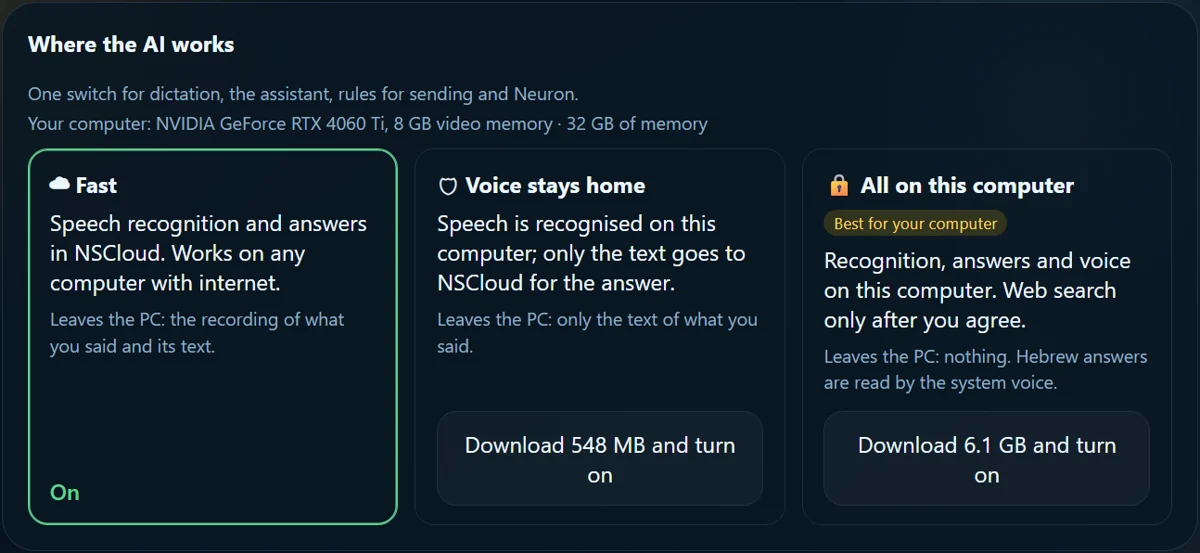
Console → AI assistant → Where the AI works.
All from the tray
Click the NeuroSwitcher icon and everything is at hand: what is left in the cloud shows right in the menu header, and the AI mode and meeting channels switch with one item.
The NeuroSwitcher tray menu on Windows (illustration).
Neuron
About sixty commands are understood right on your computer. In the “All on this computer” mode, questions are answered by the model on your computer too.
Neuron looks at the screen and explains what is on it. “I’ll select a region” — and you can show just a part.
No cloud AI: a short query goes straight to an open service, and the model on your computer puts the answer into words.
When the web is needed, Neuron asks first, and only the query is sent — not the conversation.
Asleep, Neuron waits only for “Okay, Neuron, wake up” — no need to turn it back on from the tray.
Says how many requests, searches and minutes of speech are left today.
Goes quiet mid-answer. Under every answer you see where it came from: this computer, the cloud or Wikipedia.
Chat
The microphone sits inside the input: while you talk you see the voice and where the speech is recognised. Files, a screenshot and saving the conversation are in one “+” menu.
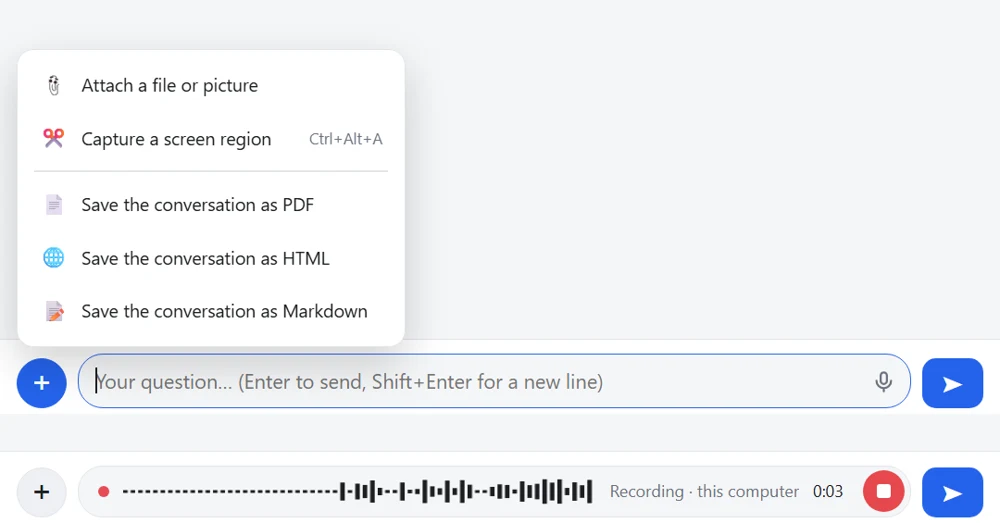
The AI assistant chat: the “+” menu and voice recording.
Meetings
An hour of other people talking is not the same as one sentence of your dictation. So where meetings are transcribed and who writes their summary is chosen separately — in the tray, under “Meeting recording”. A long meeting is summarised in parts by the model on your computer, or in one request by the cloud.
FAQ
No. Open “Where the AI works” and press the button on the marked mode. The app does the rest: downloads what it needs, turns it on and remembers.
A graphics card with 6 GB of memory (4 GB for the lighter model), or a Mac with Apple silicon and 16 GB of memory (8 GB for the lighter one). “Voice stays home” needs a graphics card from 2 GB or a Mac with Apple silicon. No graphics card of its own? It works on the processor too: “Voice stays home” recognises speech on the CPU, and “All on this computer” needs 8 GB of memory (16 GB for the better model) — answers then take a few seconds. Hebrew there needs a graphics driver. If something is missing, the mode is greyed out and says why.
“Voice stays home” — about 0.5 GB (another 0.5 GB if you write in Hebrew). “All on this computer” — about 6.5 GB.
In “Fast” — what you dictated or asked. In “Voice stays home” — only text. In “All on this computer” — nothing; short look-ups (weather, rates, encyclopedia) and web search happen only for your question, and search only with your consent. Ordinary typing never leaves your PC.
Any time, in the tray or the Console. Downloaded files stay, so switching back is instant.
In the tray menu header: “NSCloud: … requests · … searches · … min of speech”. Or ask Neuron: “Show my limits”.
Download NeuroSwitcher, open “Where the AI works” and press one button.
Download NeuroSwitcher